

Get started with Netos
This guide takes you from your Netos link to your first page in Netos. It also shows how to work out your server URL, which you need to connect an AI assistant.
What you need
- Your Netos link, for example
https://uks001.app.netos.io/example/. Your Netos administrator gives it to you. Netos has no public sign-in page atnetos.io, so keep the link. - Your work email, already given access by your administrator.
- Your sign-in: a Netos ID account, or your company sign-in if your company has connected one, such as Okta or Microsoft Entra ID. See Sign-in and access.
- A second factor if your environment asks for one: for Netos ID, a code sent to your email; for your company sign-in, the method your company uses.
How your Netos link is built
Every Netos customer has a zone, and inside it one or more environments, for example a lab and production.
https://<zone>.app.netos.io/<account>/<environment>/
<zone>is three letters and three digits, for exampleuks001.<account>is your organization's account name.<environment>is the environment, for exampleproductionorlab.
https://<zone>.app.netos.io/<account>/ lists every environment you can use. The zone address on its own
(https://<zone>.app.netos.io/) does not show a sign-in page: it sends you to netos.io.
Sign in for the first time
Open your Netos link.
Enter your work email and select Continue.
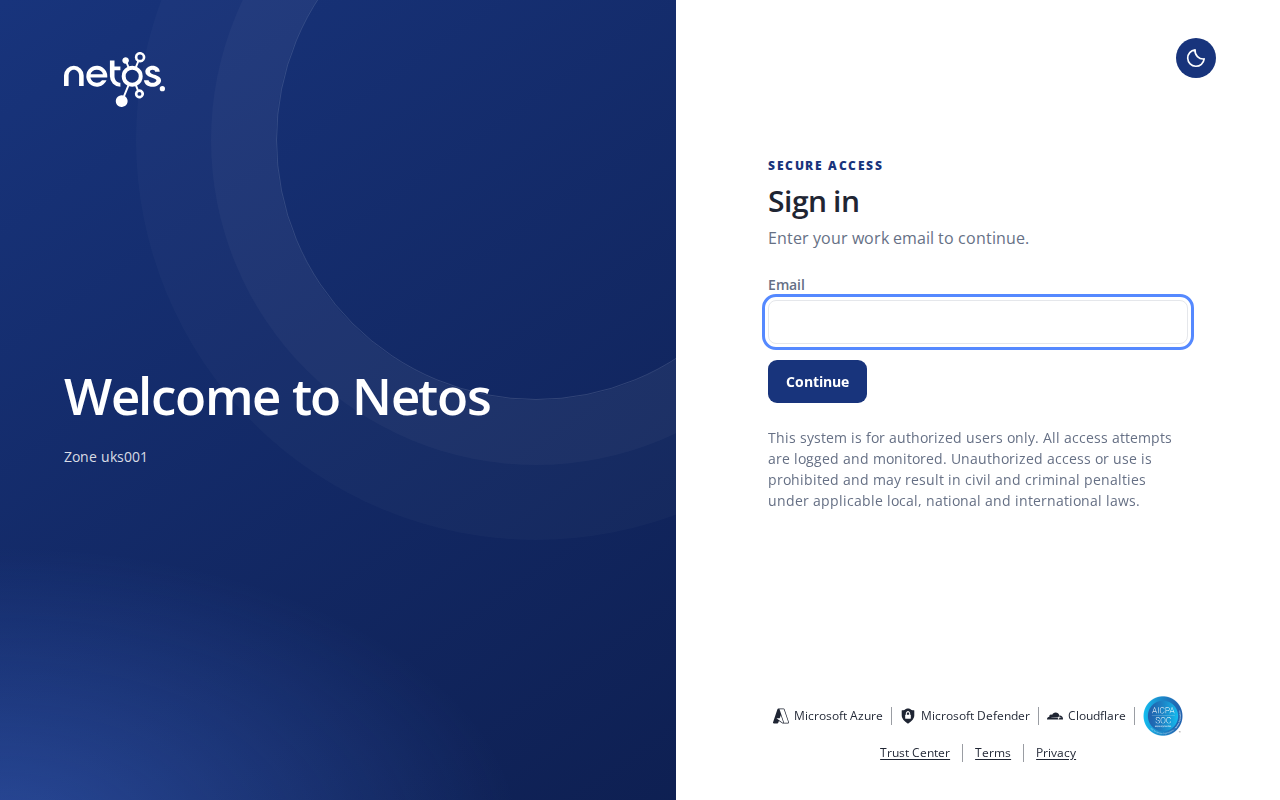
Netos recognizes your email domain and shows one button: Continue with Netos ID, or Continue with your company sign-in. If the email shown is wrong, select Change.
Sign in on the page that opens:
- Netos ID: enter your password, then the code Netos ID sends to your email.
- Company sign-in: sign in as you do for other work apps, including your MFA. The Okta guide shows each screen.
You land on your Netos home page, which lists the environments you can use. Select one to open it.
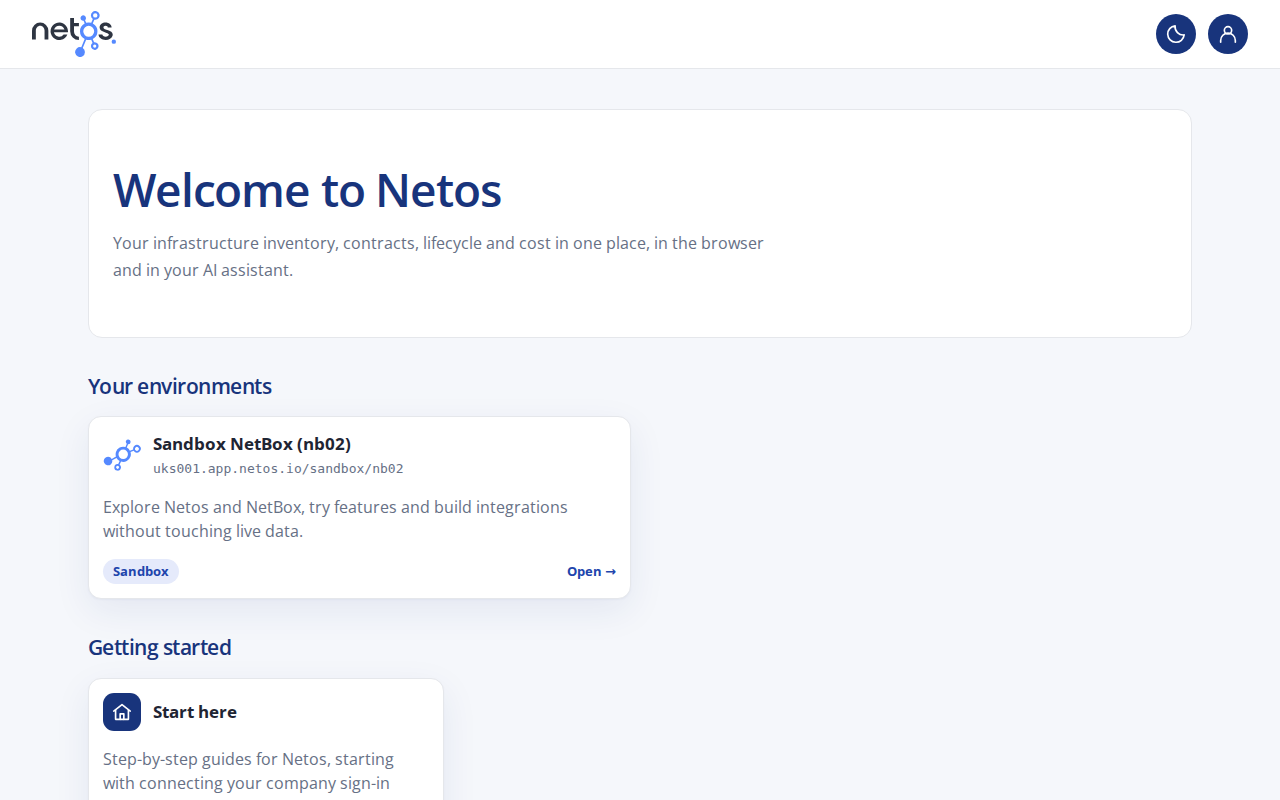
Your session ends after a period of inactivity set for your zone. Sign in again the same way.
Find your server URL
AI assistants such as Claude, ChatGPT and Microsoft Copilot connect to one environment by its server URL:
https://<zone>.app.netos.io/<account>/<environment>/mcp
- Open the environment in your browser and sign in.
- Look at the address bar. Keep the part up to and including the environment, for example
https://uks001.app.netos.io/example/production/. - Add
mcpto the end:https://uks001.app.netos.io/example/production/mcp.
| Netos link in your browser | Server URL |
|---|---|
https://uks001.app.netos.io/example/production/dcim/devices/ |
https://uks001.app.netos.io/example/production/mcp |
https://uks001.app.netos.io/example/lab/ |
https://uks001.app.netos.io/example/lab/mcp |
- Each environment has its own server URL. A lab and a production environment are two URLs.
- Some environments have a third part in the path, for example
example/production/eu. Keep all of it. - Use the zone address, never the
<zone>-auth.app.netos.iosign-in address.
Next: Connect an AI assistant.
Troubleshooting
| What you see | Likely cause | Fix |
|---|---|---|
| The link opens netos.io instead of a sign-in page | The link has no account or environment path, or the path is mistyped | Use the full link from your administrator, for example https://<zone>.app.netos.io/<account>/ |
| You are sent to Netos ID, but your company uses Okta or Entra | Your email domain is not linked to your company sign-in on this zone | Ask your Netos administrator to send Netos the domain |
| "Access denied" after sign-in | You are in no group that is linked to this environment | Ask your Netos administrator to add you to a linked group. See Groups and permissions |
| "Sign in failed" | Netos could not complete the sign-in with your provider | Send Netos support the reference ID shown on the page and the time |
| The environment you need is not in the list | You have no access to it | Ask your Netos administrator |